
Stop Creating C# Projects: The Complete Guide to .NET 10 File-Based Apps
Learn how .NET 10 file-based apps allow you to write and run C# scripts without a project file. Discover real-world examples, directives, and modern scripting.
C# is an incredibly robust language. It gives you exceptional performance, strict type safety, and access to a massive ecosystem of enterprise-grade libraries. However, it has always carried a reputation for being slightly heavy. If you want to write a quick script to parse a text file or ping an API, you traditionally face a mountain of setup. You have to create a solution file. You have to create a project file. You have to structure your folders correctly. By the time you finish configuring your environment, you might wonder if you should have just used Python or a simple bash script instead.
Microsoft has been actively working to eliminate this friction over the past few years. They introduced top-level statements to remove the boilerplate of the Program class. Now, with the upcoming release of .NET 10, they are taking the next massive step forward. They are introducing file-based apps. This feature allows you to write your C# code in a single file and execute it directly from your terminal. You do not need a project file. You do not need a solution folder. You just need a single file containing your code.
This is a fundamental shift in how we write and think about C#. It makes the language a highly competitive option for quick scripting tasks, automation, and rapid prototyping. In this comprehensive guide, we will explore exactly how file-based apps work. We will look at real-world examples, discuss how to manage dependencies, and examine when you should transition back to a traditional project structure.
The Evolution of Simplicity in C#
To truly appreciate the value of file-based apps, we need to understand the historical context of the language. In the early days of .NET, every single application required an immense amount of ceremony. You needed to define namespaces, create a class, and declare a static Main method just to print a simple message to the console. This structure was fantastic for large enterprise applications. It enforced organization and maintainability. However, it was terrible for beginners and quick prototypes.
The team at Microsoft recognized that developers wanted a faster way to experiment with code. They started stripping away the unnecessary requirements. They gave us top-level statements in C# 9. This allowed us to write code directly at the top of a file without wrapping it in a class. They introduced global using directives in C# 10 to reduce clutter at the top of our files. These were huge improvements.
However, there was still a significant hurdle remaining. You still needed a .csproj file to define your target framework and manage your external dependencies. The project file acts as the anchor for the application. It tells the compiler how to build the code. But for a throwaway script, creating and maintaining a project file is simply unnecessary overhead. File-based apps completely remove this requirement. You just create a .cs file and run it. The .NET CLI handles all the heavy lifting in the background.
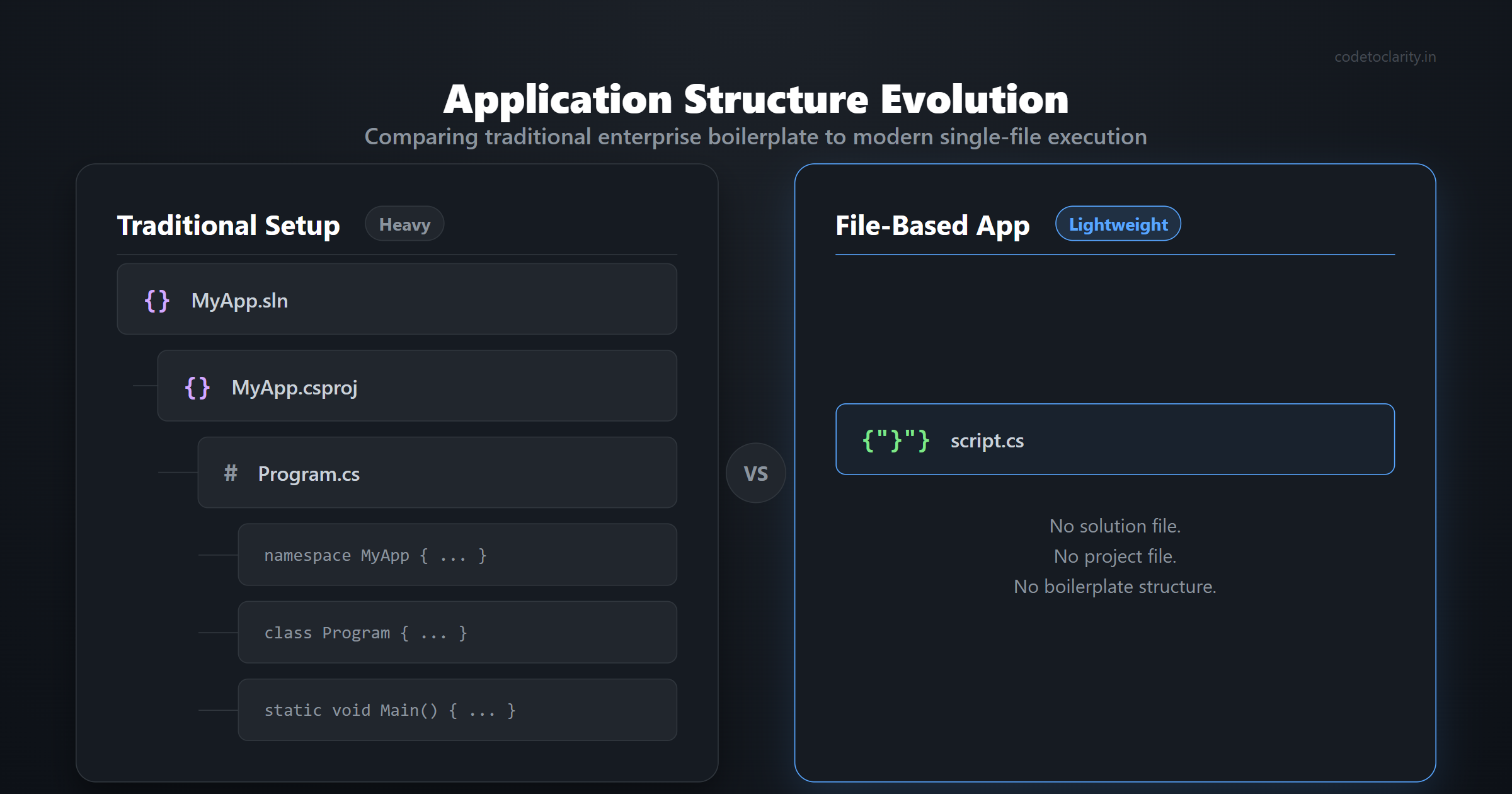
Understanding the Magic Behind File-Based Apps
You might be wondering how this process actually works behind the scenes. C# is a compiled language. It is not an interpreted language like JavaScript or Python. It needs to know which SDK to use and where to find its dependencies before it can execute. How can it possibly run from a single isolated file?
When you execute a file-based app, the .NET CLI performs several clever steps automatically. It reads your .cs file and looks for special configuration directives at the very top. We will discuss these specific directives shortly. It then creates a hidden virtual project in a temporary directory on your machine. It compiles your code within that virtual project context. Finally, it executes the resulting compiled binary.
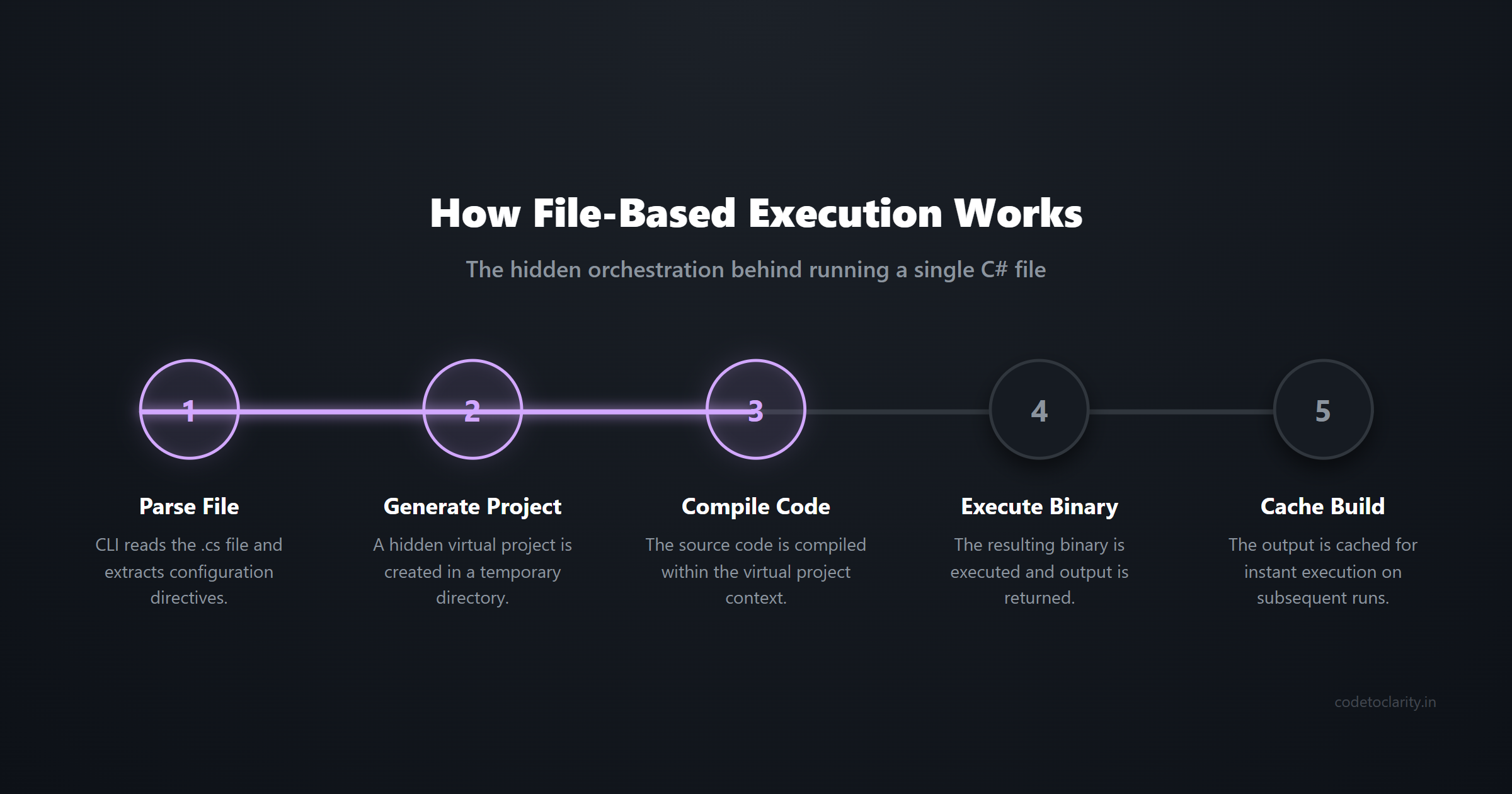
The best part of this process is that the CLI is incredibly smart about caching. The very first time you run your script, it might take a few seconds to download packages and perform the initial compilation. On subsequent runs, it skips the build process completely if the file content has not changed. The execution becomes nearly instantaneous. You get the fast feedback loop of an interpreted language combined with the raw performance and type safety of compiled C#.
Building Your First CodeToClarity Script
Let us walk through a practical example to see how simple this process really is. Imagine you want to create a quick utility to calculate the number of days remaining until a specific deadline. You do not want to clutter your hard drive with a new project folder. You just want a single file that works immediately.
Create a new file named DeadlineCalculator.cs anywhere on your computer. You can use any basic text editor for this task. You do not even need Visual Studio or a heavy IDE.
Paste the following code into your new file:
using System;

var targetDate = new DateTime(2026, 12, 31);
var daysRemaining = (targetDate - DateTime.Today).Days;

Console.WriteLine("Welcome to CodeToClarity!");
Console.WriteLine($"There are exactly {daysRemaining} days left until the end of 2026.");
To run this script, open your terminal window and type the following command:
dotnet run DeadlineCalculator.cs
That is all there is to it. The .NET CLI will pick up the file, compile it on the fly, and display the output in your console. There are no project files to manage. There are no hidden folders cluttering your workspace. It is just pure, unadulterated C# code executing flawlessly.
Managing Dependencies Without a Project File
A programming language is only as useful as its broader ecosystem. The real power of C# comes from the massive collection of packages available through NuGet. In a traditional application, you use the project file to define your package references. How do you accomplish this in a single-file application?
.NET 10 introduces a brand new syntax for file-level configuration. You can use special directives that start with a hash symbol and a colon. The most important directive you will use is #:package. This directive tells the compiler to download and reference a specific NuGet package directly from your script.
Let us build a more advanced utility to demonstrate this feature. We will create a script that processes some mock blog analytics data and exports it to a structured CSV file. We will need the popular CsvHelper library to handle the formatting gracefully. This is an excellent opportunity to pull packages from the official NuGet package repository directly into our standalone script.
#:package CsvHelper@33.0.1
#:package System.Text.Json@9.0.0

using System;
using System.IO;
using System.Text.Json;
using System.Linq;
using CsvHelper;
using System.Globalization;
using System.Collections.Generic;

Console.WriteLine("Starting the CodeToClarity data processor...");

var mockJsonData = """
[
    {"Topic": "C# Basics", "Views": 1500},
    {"Topic": "File-Based Apps", "Views": 3200},
    {"Topic": "Blazor Fundamentals", "Views": 2100}
]
""";

var codetoclarityStats = JsonSerializer.Deserialize<List<BlogStat>>(mockJsonData);

var topTopics = codetoclarityStats
    .OrderByDescending(stat => stat.Views)
    .ToList();

using var writer = new StreamWriter("codetoclarity_report.csv");
using var csv = new CsvWriter(writer, CultureInfo.InvariantCulture);
csv.WriteRecords(topTopics);

Console.WriteLine("Report successfully generated to codetoclarity_report.csv!");

record BlogStat(string Topic, int Views);
Notice how clean and explicit this looks. The package references sit right at the top of the file. Anyone reading the script immediately knows exactly what dependencies are required. They can download the script to their machine, run it, and the .NET CLI will automatically pull down CsvHelper before executing the code. This makes sharing small utilities incredibly simple and frictionless.
Advanced Techniques: Dependency Injection in a Single File
Many developers assume that single-file scripts are only good for basic procedural code. This is completely false. You have access to the entire .NET ecosystem, which means you can use advanced enterprise patterns right inside your standalone file.
For example, you can easily configure dependency injection. This is highly useful when you are writing a script that needs to interact with various APIs or database services. You can set up your service collection, register your dependencies, and resolve them just like you would in a massive enterprise application.
#:package Microsoft.Extensions.DependencyInjection@9.0.0

using System;
using Microsoft.Extensions.DependencyInjection;

var services = new ServiceCollection();
services.AddTransient<CodeToClarityService>();

var provider = services.BuildServiceProvider();
var codetoclarityService = provider.GetRequiredService<CodeToClarityService>();

codetoclarityService.ExecuteTask();

public class CodeToClarityService
{
    public void ExecuteTask()
    {
        Console.WriteLine("CodeToClarity Service is running perfectly via Dependency Injection!");
    }
}
This snippet demonstrates the true power of file-based apps. You are not forced to abandon good architectural practices just because you are writing a script. You can build robust, testable, and loosely coupled code inside a single file.
Orchestrating the Cloud and Microservices
File-based apps are not limited to console utilities and data processors. You can use them to spin up incredibly complex cloud architectures. The .NET CLI allows you to specify the exact SDK you want to use for your script via the #:sdk directive. This means you can build web applications or microservice orchestrations in a single file.
A fascinating use case for this feature involves .NET Aspire. Aspire is a powerful stack designed for building resilient distributed applications. You can define an entire Aspire AppHost inside a single standalone script. You can configure a Redis cache, spin up a PostgreSQL database, wire them together, and launch a web dashboard in mere seconds.
This capability is a massive leap forward for rapid prototyping. You can experiment with complex cloud architectures in minutes without worrying about solution files or project structures. If you want to learn more about how Aspire works under the hood, you should definitely explore the official .NET Aspire GitHub repository for detailed examples and technical documentation.
Integrating with DevOps and CI/CD Pipelines
Another area where file-based apps shine brightly is in DevOps and continuous integration scenarios. Most build pipelines require small maintenance scripts to move files around, parse version numbers, or communicate with deployment APIs. Historically, DevOps engineers have relied on Bash or PowerShell for these tasks.
Now, you can use C# for everything. You can write your custom build logic in a single .cs file and execute it directly from your GitHub Actions or Azure DevOps pipeline. You do not need to run dotnet restore or dotnet build explicitly. You just call dotnet run script.cs and the CLI handles the rest. This unifies your technology stack. Your application code and your infrastructure scripts can all be written in the exact same language.
Growing Pains and The Upgrade Path
Every prototype has the potential to become a production application. What happens when your single-file script inevitably grows too large? Maybe you need to add comprehensive unit tests. Maybe you want to split your code across multiple files for better team organization. Maybe you simply want full IDE support for debugging and refactoring.
Microsoft anticipated this exact scenario. They built a seamless upgrade path directly into the command line tools. When your script outgrows its single-file format, you can convert it into a full C# project with a simple automated command.
You simply open your terminal and run dotnet project convert MyScript.cs.
The tooling will analyze your script automatically. It will read your #:package and #:sdk directives. It will generate a standard .csproj file that perfectly matches your specific configuration. It will move your execution logic into a standard Program.cs file. The entire transition is completely automated and painless.
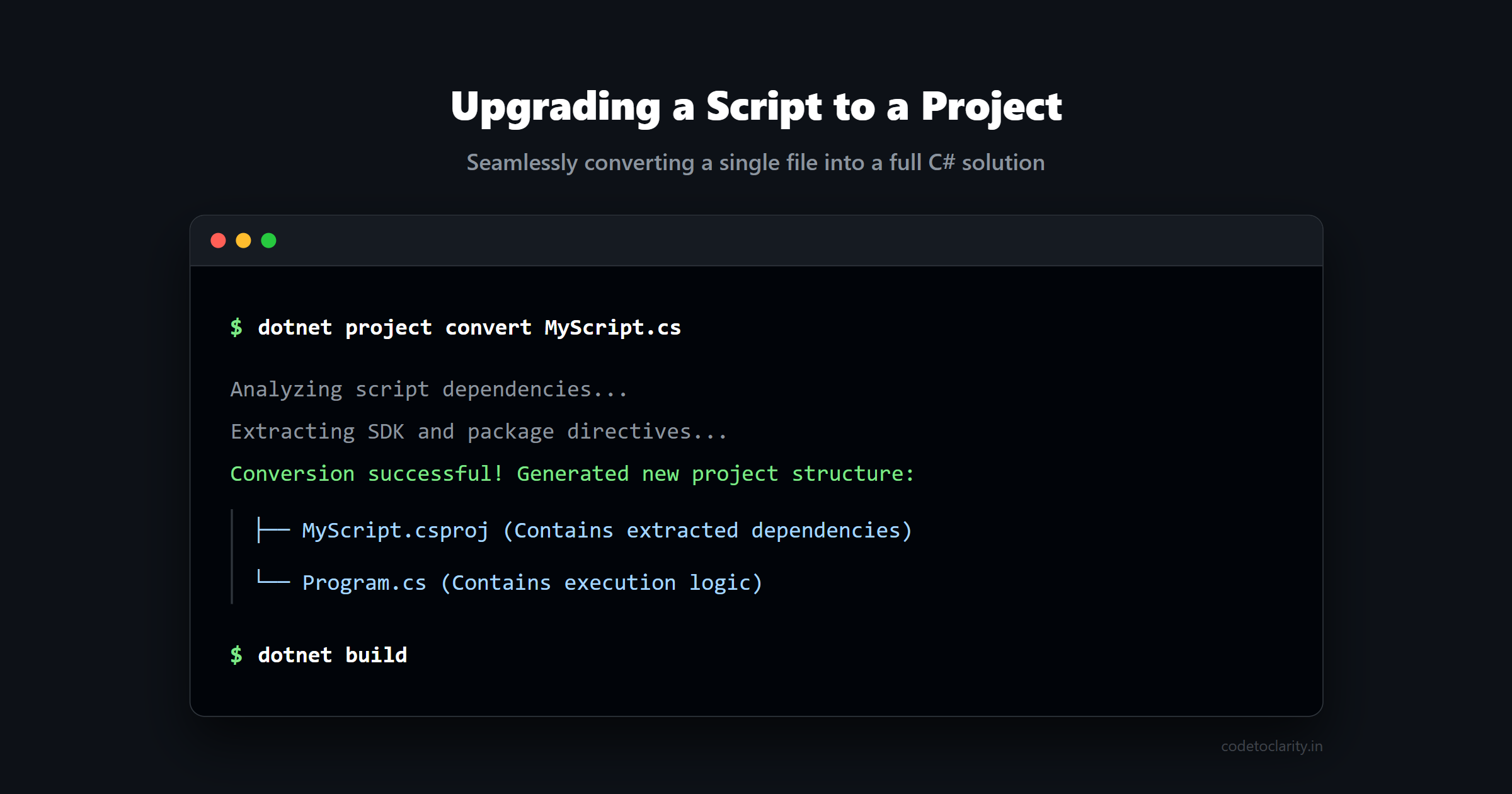
You get the freedom to start small and the capability to scale up when necessary. This intelligent approach completely removes the anxiety of choosing the wrong architecture at the start of a new project.
Why This Matters for Beginners
One of the biggest hurdles in teaching C# has always been the initial environment setup. When a new student wants to write their very first line of code, they have to navigate a confusing maze of terminology. They need to understand the difference between a solution and a project. They need to learn about namespaces, access modifiers, and static classes. It is completely overwhelming for someone who just wants to print "Hello World" to the screen.
File-based apps change the teaching dynamic fundamentally. You can open a completely blank text document and write a single line of executable code. The student sees immediate, tangible results. They can focus entirely on learning the core foundational concepts of programming like variables, conditional loops, and logic structures.
Once they are perfectly comfortable with the basics, you can gradually introduce them to the broader concepts of application architecture. This feature makes C# incredibly approachable for newcomers. It bridges the gap between the rapid simplicity of interpreted languages and the immense power of statically typed ecosystems. You truly get the best of both worlds.
Current Limitations to Keep in Mind
While file-based apps are a fantastic addition to the .NET ecosystem, they are not a magical silver bullet. There are a few key limitations you should be aware of before moving all your automation scripts over to C#.
First, the developer tooling is still maturing rapidly. If you use Visual Studio or Visual Studio Code, you might notice that IntelliSense is not fully optimized for single-file scenarios just yet. The editor might struggle occasionally to resolve dynamic package references defined via directives. You will still get accurate syntax highlighting, but the autocomplete experience might not feel as robust as it does in a traditional project.
Second, the underlying caching mechanism can occasionally stumble. If you are rapidly changing package versions or constantly experimenting with different SDKs, the local cache might become slightly confused. You might need to manually clear your temporary build folders if things stop working unexpectedly during heavy iteration.
Finally, the feature is strictly designed for single files. You cannot easily reference another standalone .cs file without converting your script into a full project first. If you find yourself writing hundreds of lines of code across multiple files, it is definitely time to use the project conversion command and graduate to a standard solution.
For deep technical dives into these specific limitations and upcoming features, studying the Microsoft .NET documentation is always the best way to stay updated on the latest tooling capabilities.
Conclusion
The introduction of file-based apps in .NET 10 is a monumental step forward for overall developer experience. It acknowledges a very simple truth. Not every piece of code needs to be a massive enterprise-grade application. Sometimes, we just need to get simple tasks done quickly and efficiently.
By stripping away the mandatory project ceremony, C# has become an incredibly excellent choice for utility scripts, data processing, and rapid prototyping. You can leverage your existing knowledge of the language and its massive library ecosystem without dealing with any administrative overhead.
The next time you find yourself reaching for Python or a shell script to solve a minor problem, pause for a moment. Try creating a .cs file instead. You might just find that the language you already use for your largest applications is also the absolute perfect tool for your smallest tasks.

Kishan Kumar
Software Engineer / Tech Blogger
A passionate software engineer with experience in building scalable web applications and sharing knowledge through technical writing. Dedicated to continuous learning and community contribution.