
Migrating to .slnx Format in .NET: The Complete Guide to Modern Solution Files
Learn why the classic .sln file is outdated and how migrating to the modern XML-based .slnx format in .NET eliminates merge conflicts and simplifies CI/CD.
For over two decades, the classic Visual Studio .sln file has been the silent backbone of nearly every .NET application in existence. Whether you are building a tiny console application or a massive enterprise microservices architecture, that little file has been responsible for tying everything together. It worked, mostly. But as the .NET ecosystem has evolved by modernizing everything from Program.cs to the project .csproj files themselves, the solution file remained a relic of the past. It was proprietary, loosely structured, and notoriously difficult to read, diff, or merge in version control.
If you have ever stared at a Git merge conflict in a .sln file and wondered why it is so complicated, you are not alone. The classic format is essentially a soup of randomly generated GUIDs and rigid formatting rules that only Visual Studio truly understands.
With the introduction of the new XML-based .slnx solution format, Microsoft has finally brought the solution file into the modern era. This format aligns with the SDK-style project system, simplifies version control, and makes automation a breeze.
If you are maintaining enterprise .NET systems, building modular architectures, or simply trying to reduce the headache of Git merge conflicts on your team, migrating to .slnx is a meaningful and satisfying upgrade.
In this comprehensive guide, we will explore exactly why the classic .sln file was problematic, what the new .slnx format brings to the table, and how you can seamlessly migrate your projects today. Let us dive in!
What Exactly Is a Solution File?
Before we talk about migrating, let us quickly recap what a solution file actually does. When you open a project in Visual Studio or run dotnet build from the command line, the tooling needs to know which projects belong to your application and how they relate to each other.
The solution file acts as a high-level container. It does not contain any source code itself. Instead, it holds metadata about your projects, including:
- Project Paths: Where the
.csprojor.fsprojfiles are located on your disk. - Solution Folders: Virtual folders used to organize projects logically within the IDE.
- Build Configurations: Settings that dictate which projects should be built in
DebugversusReleasemode. - Project Dependencies: The order in which projects must be compiled (though much of this is now handled by the project files themselves).
Think of the solution file as the map that tells the compiler and the IDE where all the puzzle pieces are located. Without it, you would have to manually build each project one by one. This would be a nightmare for any application with more than a couple of moving parts.
The Hidden Costs of the Classic .sln Format
If the classic .sln file has worked since the early 2000s, why do we need to replace it? The truth is, while it functioned, it was designed for a very different era of software development. It comes from a time before Git was the dominant version control system and before Continuous Integration pipelines were standard practice.
1. It Is Not XML (Or JSON, Or YAML)
Unlike almost every other configuration file in the modern .NET ecosystem, the classic .sln format is not XML, JSON, or YAML. It uses a proprietary, custom text format that is incredibly rigid. If you accidentally delete a space or a quote mark in a text editor, you can corrupt the entire file. This renders your solution unopenable in Visual Studio.
2. The Merge Conflict Nightmare
Because the format is highly sensitive to line order and uses a rigid structure, adding a new project to the solution on two different Git branches almost always results in a merge conflict. Resolving a .sln merge conflict manually is a terrifying experience. You are forced to carefully stitch together blocks of text that look like a foreign language, hoping you do not break the fragile syntax.
3. A Sea of GUIDs
Open any classic .sln file, and you will be greeted by a sea of Globally Unique Identifiers (GUIDs). Every single project in your solution is assigned a unique GUID. On top of that, there are Project Type GUIDs that tell Visual Studio whether a project is a C# class library, an ASP.NET Core web app, or a unit test project.
These GUIDs make the file incredibly difficult for a human to read. When you look at a line of configuration, it is nearly impossible to tell what project it refers to without reverse-engineering the GUID references.
4. Poor Tooling Extensibility
Because the format is proprietary, building custom tools to read or modify .sln files has always been a chore. Developers have had to rely on complex regular expressions or heavy Visual Studio APIs just to programmatically add or remove a project.
As you can see, the classic format was long overdue for an overhaul. It simply did not fit into the text-friendly and declarative world of modern .NET.
Enter the .slnx Format: A Modern Hero
The .slnx format is Microsoft's answer to the decades-old .sln problem. Introduced as a preview feature in Visual Studio 2022 (version 17.10 and later), this new format completely reimagines how solution metadata is stored.
The most significant change is right in the name. The "x" stands for XML.
By moving to an XML-based structure, the .slnx format aligns perfectly with the modern SDK-style .csproj files we all know and love. It embraces the philosophy that configuration files should be declarative, human-readable, and easy for machines to parse.
Why XML?
You might be wondering why Microsoft chose XML instead of JSON or YAML. The answer lies in consistency. The entire MSBuild ecosystem is heavily rooted in XML. You can read more about how this ecosystem operates in the official Microsoft documentation on MSBuild. By using XML for the solution file, Microsoft ensures that the tooling, parsing libraries, and developer mental models remain consistent across the entire build pipeline.
If you are comfortable reading a .csproj file, you will be instantly comfortable reading a .slnx file.
Head-to-Head: .sln vs .slnx
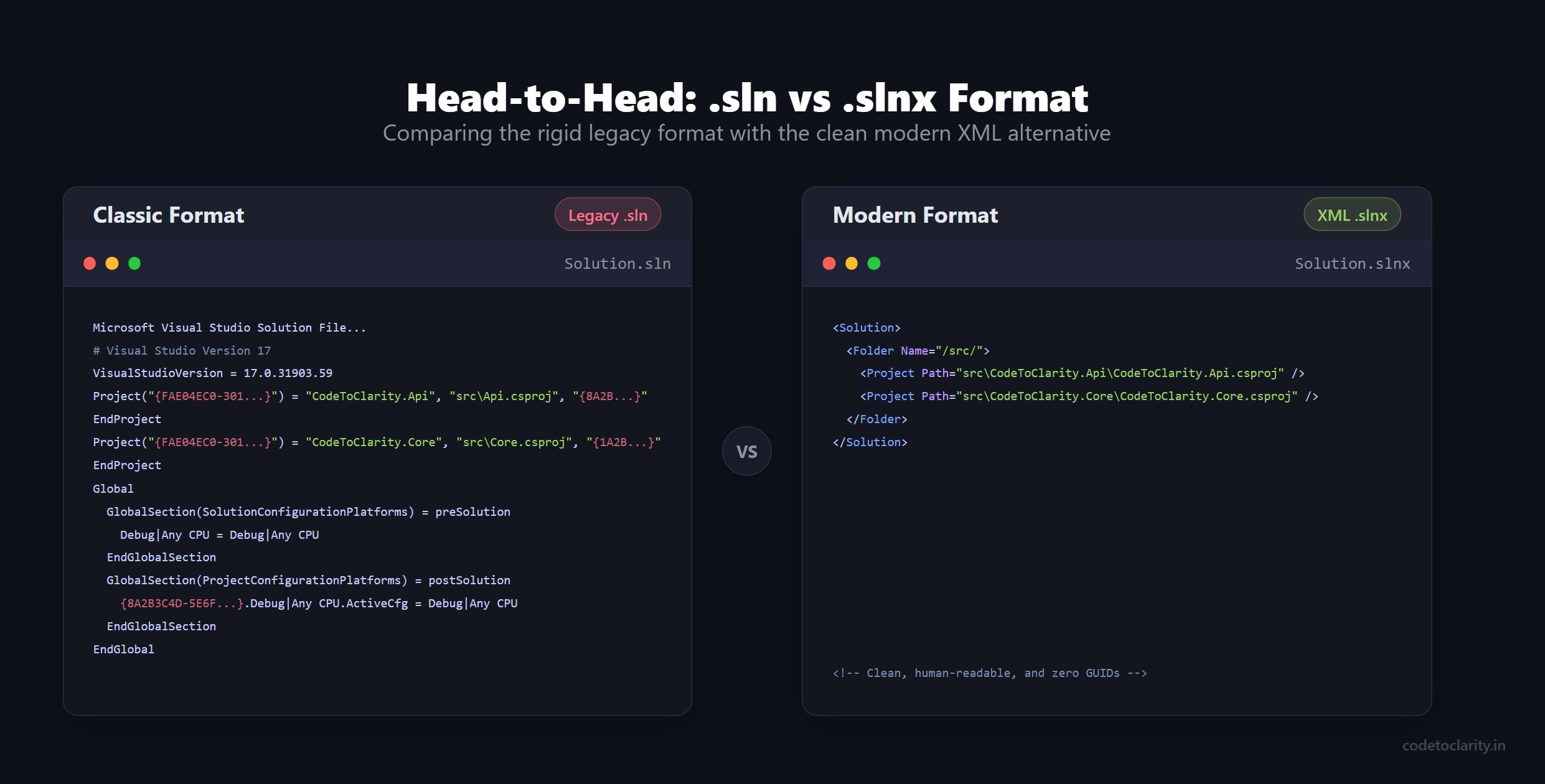
To truly appreciate the elegance of the new format, let us look at a side-by-side comparison. Imagine we have a simple solution with a web API project and a class library.
The Old Way: Classic .sln
Here is a simplified snippet of what a classic solution file looks like:
Microsoft Visual Studio Solution File, Format Version 12.00
# Visual Studio Version 17
VisualStudioVersion = 17.0.31903.59
MinimumVisualStudioVersion = 10.0.40219.1
Project("{FAE04EC0-301F-11D3-BF4B-00C04F79EFBC}") = "CodeToClarity.Api", "src\CodeToClarity.Api\CodeToClarity.Api.csproj", "{8A2B3C4D-5E6F-7A8B-9C0D-1E2F3A4B5C6D}"
EndProject
Project("{FAE04EC0-301F-11D3-BF4B-00C04F79EFBC}") = "CodeToClarity.Core", "src\CodeToClarity.Core\CodeToClarity.Core.csproj", "{1A2B3C4D-5E6F-7A8B-9C0D-1E2F3A4B5C6D}"
EndProject
Global
	GlobalSection(SolutionConfigurationPlatforms) = preSolution
		Debug|Any CPU = Debug|Any CPU
		Release|Any CPU = Release|Any CPU
	EndGlobalSection
	GlobalSection(ProjectConfigurationPlatforms) = postSolution
		{8A2B3C4D-5E6F-7A8B-9C0D-1E2F3A4B5C6D}.Debug|Any CPU.ActiveCfg = Debug|Any CPU
		{8A2B3C4D-5E6F-7A8B-9C0D-1E2F3A4B5C6D}.Debug|Any CPU.Build.0 = Debug|Any CPU
		{1A2B3C4D-5E6F-7A8B-9C0D-1E2F3A4B5C6D}.Release|Any CPU.ActiveCfg = Release|Any CPU
	EndGlobalSection
EndGlobal
This is dense, confusing, and full of arbitrary GUIDs. The first GUID tells Visual Studio that this is a C# project. The second GUID is the unique identifier for the project itself. The build configurations map these GUIDs to specific build targets. It is a massive headache.
The New Way: XML-Based .slnx
Now, let us look at the exact same solution represented in the new .slnx format:
<Solution>
  <Folder Name="/src/">
    <Project Path="src\CodeToClarity.Api\CodeToClarity.Api.csproj" />
    <Project Path="src\CodeToClarity.Core\CodeToClarity.Core.csproj" />
  </Folder>
</Solution>
That is it. That is the entire file.
The structure is purely declarative. The IDE automatically infers the project types from the .csproj extensions. The build configurations (like Debug and Release) are implicitly understood unless you specifically need to override them. And the dreaded GUIDs are completely gone.
The Core Benefits of Migrating Your Enterprise
If you are working on a solo project, the cleaner syntax is a nice bonus. But if you are working on a team or maintaining a large-scale enterprise application, the benefits of migrating to .slnx are transformative. Let us break down exactly why you should consider making the switch.
1. Git Merge Conflict Eradication
Because the new format is simple XML, Git handles it beautifully. This drastically reduces the complexity of resolving Git merge conflicts. If two developers add different projects to the solution on different branches, Git can usually merge the XML nodes automatically without any human intervention. Even if a conflict does occur, resolving it is as simple as making sure both tags are present in the file. No more deciphering overlapping GUIDs or broken sections.
2. Radical Readability
Code is read far more often than it is written, and configuration files are no exception. The .slnx format allows any developer to open the solution file in a standard text editor and instantly understand the architecture of the application. You can easily see which projects are grouped into which solution folders without having to boot up Visual Studio.
3. Painless Tooling and Scripting
Have you ever needed to write a script that analyzes your solution to ensure all test projects are named correctly? Or maybe a script to dynamically generate a solution file for a specific subset of microservices?
With the classic format, parsing the file required specialized libraries. With .slnx, any language that can parse XML can easily interact with your solution. You can use standard PowerShell cmdlets, Python scripts, or basic C# XML parsers to manipulate your solution structure programmatically.
4. Leaner Repositories
By stripping away the redundant build configuration mappings and project type definitions, .slnx files are significantly smaller than their legacy counterparts. While disk space is cheap, a cleaner repository with less noise in your commit history is priceless. It signals a maturity in your DevOps practices and an alignment with the modern Clean Architecture philosophy.
Step-by-Step Guide to Migrating to .slnx
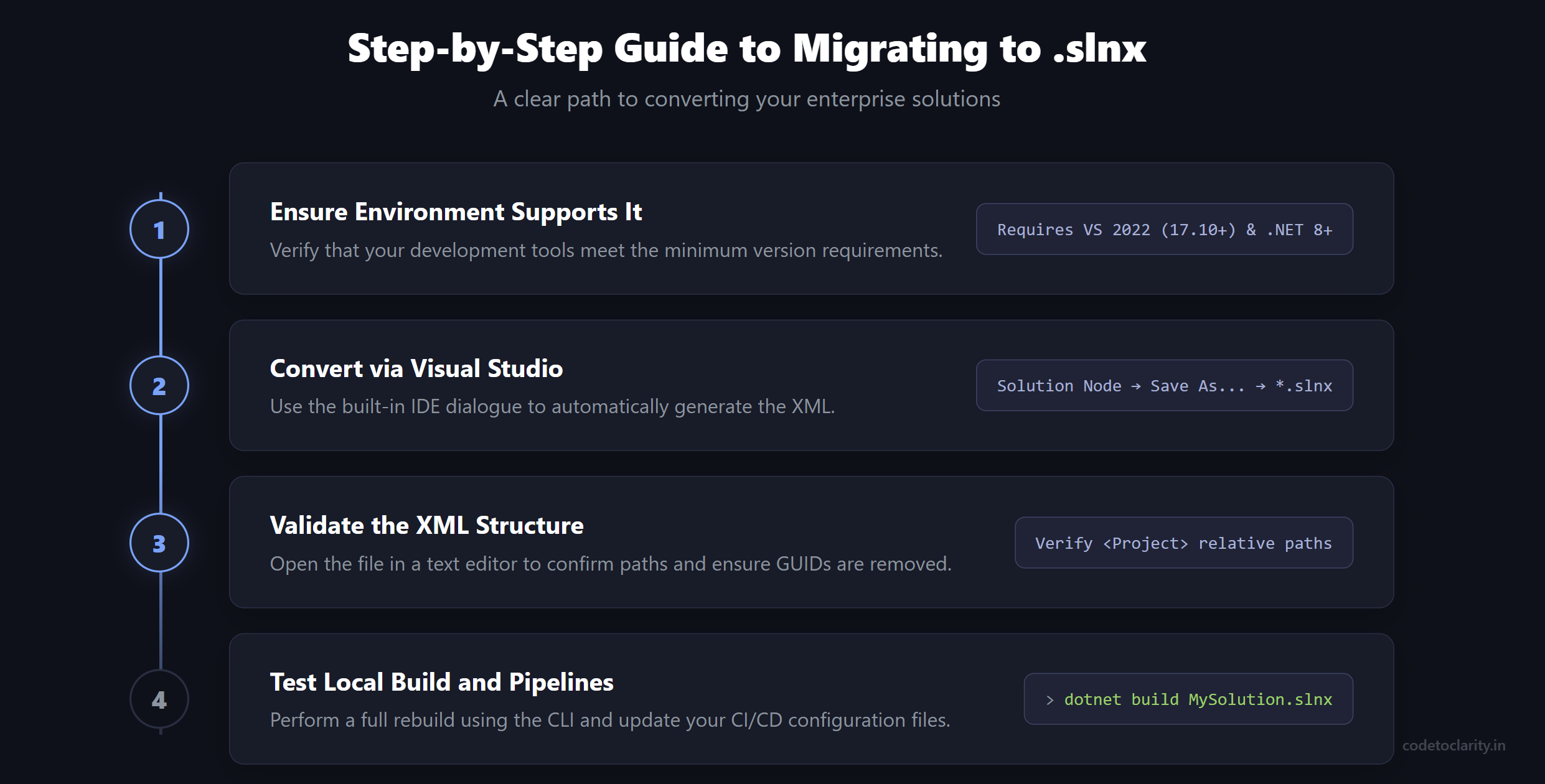
Are you ready to make the jump? Migrating is incredibly straightforward, but because the feature is still relatively new, you need to ensure your environment is prepared. Follow these steps to convert your existing solutions smoothly.
Step 1: Ensure Your Environment Supports It
Before you touch any files, you must ensure that your development environment and build servers support the .slnx format.
You will need:
- Visual Studio 2022: Version 17.10 or later.
- .NET SDK: The latest .NET 8 or .NET 9 SDK (you can download the latest .NET SDK directly from Microsoft).
If you are using Visual Studio, you may need to explicitly enable the preview feature. Go to Tools > Options > Environment > Preview Features and ensure that the Use Solution File Persistence Model option is checked.
To verify your SDK version on the command line, simply run:
dotnet --version
Make sure all developers on your team are running the required minimum versions before proceeding. Otherwise, they will not be able to open the new file.
Step 2: Convert the Solution via Visual Studio
The safest and easiest way to convert your solution is directly through the Visual Studio IDE. Microsoft has built the conversion tool right into the saving dialogue.
- Open your existing
.slnfile in Visual Studio 2022. - Ensure all your projects load successfully and compile.
- In the Solution Explorer, right-click the very top node (the Solution node itself).
- Select Save As....
- In the file dialogue, change the "Save as type" dropdown to XML Solution File (*.slnx).
- Click Save.
Visual Studio will instantly generate the new XML file alongside your old one. It does all the heavy lifting by stripping out the GUIDs and generating the clean XML tags.
Step 3: Validate the New XML Structure
Do not just trust the automated process. Verify it yourself. Open your newly created .slnx file in a lightweight editor like VS Code or Notepad.
You should see a clean, declarative structure. Verify that all your projects are listed with the correct relative paths and that your virtual solution folders are intact. There should be absolutely no legacy cruft or GUIDs left behind.
If you have custom build configurations (for example, a custom Staging environment mapping), verify that those mappings were translated correctly into the XML properties.
Step 4: Test Your Local Build
Close Visual Studio entirely. Now, double-click your new .slnx file to open it. Ensure the solution loads, the dependency graph resolves, and you can perform a full rebuild successfully.
Next, open your terminal and verify that the .NET CLI understands the new format:
dotnet build MySolution.slnx
If it builds successfully, you are halfway there!
Updating Your CI/CD Pipelines
Migrating locally is only the first part of the journey. Your automated build pipelines must also understand the new format. Whether you are using GitHub Actions, Azure DevOps, or Jenkins, you need to update your pipeline definitions.
If your pipeline simply runs dotnet build without specifying a file, it will automatically look for a .sln or .slnx file in the directory. However, if your scripts explicitly point to the old file, you must update them.
Example: GitHub Actions
If your YAML workflow explicitly calls the solution file like this:
steps:
- name: Build
  run: dotnet build src/MySolution.sln --configuration Release
You must update the path to point to the new extension:
steps:
- name: Build
  run: dotnet build src/MySolution.slnx --configuration Release
The dotnet test, dotnet restore, and dotnet publish commands operate identically. Simply point them to the new file. If you are using advanced deployment pipelines, such as those discussed in our guide on Automating .NET Deployments, this single string replacement is typically all that is required to get everything working again.
Common Pitfalls and How to Avoid Them
While the transition is largely seamless, there are a few important considerations and potential pitfalls to keep in mind before you roll this out to production.
1. Third-Party Tooling Compatibility
This is the biggest hurdle. While Visual Studio and MSBuild understand .slnx, some third-party tools may not yet fully support it. If you rely heavily on older static analysis tools, specialized CI/CD scanners, or legacy code generators that explicitly look for a .sln extension, they might break.
It is highly recommended to run a full suite of your automated tooling against a feature branch containing the .slnx file before merging it into your main branch. If you are using modern AI tools, such as CodeRabbit for AI Code Reviews, ensure their context parsing still functions correctly with the XML format.
2. Have a Rollback Plan
Always have an escape hatch. When you perform the migration, do not delete your classic .sln file immediately. Keep it in your repository for at least one sprint.
If a critical deployment pipeline fails due to an obscure incompatibility with the .slnx file, you can easily point the pipeline back to the classic .sln file as a hotfix while you investigate the issue. Only delete the old file once you are completely confident that your entire toolchain supports the XML format.
3. Visual Studio Code and Rider Support
While Visual Studio 2022 fully supports the format, support across other IDEs like JetBrains Rider and VS Code (via the C# Dev Kit) is continually improving. Ensure your team members who use alternative IDEs upgrade to the latest versions that include support for the XML persistence model.
Team Rollout Strategy: How to Lead the Migration
If you are a technical lead or architect, you should not just surprise your team with a new solution format on a Monday morning. A successful migration requires communication.
Here is a simple strategy for an enterprise rollout:
- Communicate the Benefits: Share the benefits of Git merge conflict reduction and cleaner pull requests with the team.
- Mandate the Tooling Update: Require all developers to update to the latest Visual Studio 2022 version and .NET SDK.
- Branch and Test: Create a specific migration branch. Commit the new file alongside the old one.
- Update the Build Servers: Point a staging pipeline to the new file and monitor the build logs.
- The Final Cutover: Once verified, host a brief meeting, delete the classic
.slnfile, and merge the pull request.
By taking a structured approach, you eliminate the risk of blocking a developer who forgot to update their IDE.
Conclusion
The migration from the classic .sln to the XML-based .slnx format is a perfect example of Microsoft's ongoing effort to modernize the .NET ecosystem. It strips away decades of legacy cruft, replacing it with a format that is declarative, human-readable, and fundamentally friendly to version control systems like Git.
While it may seem like a minor cosmetic change at first glance, the eradication of solution-level merge conflicts and the newfound ability to easily script against your architecture will save your team countless hours of frustration.
The next time you start a greenfield project, there is absolutely no reason to use the legacy format. And for your existing enterprise systems, it is time to add the .slnx migration to your technical debt backlog. Your future self, and your Git history, will thank you.

Kishan Kumar
Software Engineer / Tech Blogger
A passionate software engineer with experience in building scalable web applications and sharing knowledge through technical writing. Dedicated to continuous learning and community contribution.